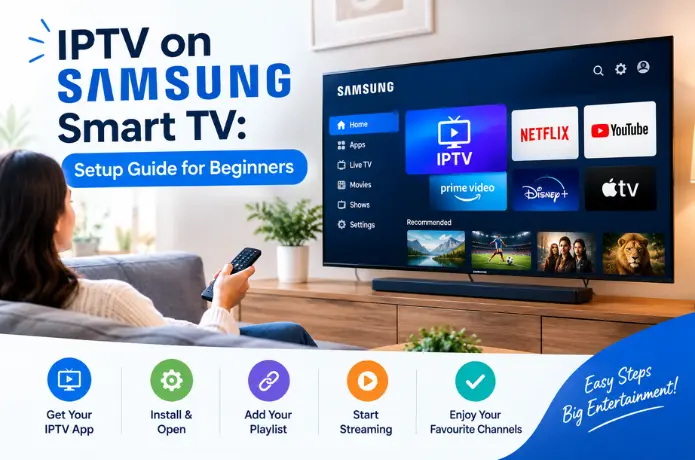

IPTV on Samsung Smart TV: Setup Guide for Beginners
Setting up IPTV on Samsung Smart TV looks more complicated than it actually is. Samsung's Tizen operating system doesn't include a built-in IPTV player the way some Android-based TVs do, which throws a lot of first-timers off — but once you know which app to use and where to find it, the whole process takes about ten minutes.
This guide walks through it from scratch, assuming you've never installed an IPTV app on a Samsung TV before.
Why Samsung TVs Work Differently for IPTV
If you've set up IPTV on an Android box or Firestick before, the Samsung process can feel unusually restrictive. That's because Samsung's Tizen operating system is a closed platform — you can only install apps that Samsung has approved and listed in its own App Store. There's no sideloading option built in, which is what makes apps like IPTV Smarters Pro or TiviMate unavailable directly on the TV itself.
Smart IPTV became the go-to workaround for this limitation because its developer built a system specifically around that restriction: instead of requiring account creation inside the app, activation happens through a browser-based portal tied to your TV's MAC address. It's a slightly unusual flow the first time you do it, but it's also why the app has remained reliable across TV firmware updates that sometimes break other, less actively maintained apps.
Before You Start
Make sure you have the following ready:
- Your Samsung Smart TV connected to Wi-Fi or Ethernet
- Your IPTV subscription details — either an M3U playlist link, or an Xtream Codes server, username, and password
- A stable internet connection, ideally wired for the smoothest live streaming
If you don't have your login details yet, get those from your IPTV provider first. Everything below assumes you already have them in hand.
Step 1: Choose an IPTV App
Samsung TVs don't support sideloading apps outside the official Samsung App Store, so you're limited to whatever's available there. The most commonly used option is Smart IPTV, which has become something of a standard for Samsung and LG TVs specifically because of how it handles activation.
A few things make Smart IPTV the practical default choice: it's built specifically for Tizen and webOS, it's well maintained, and it supports both M3U and Xtream Codes logins.
Step 2: Install the App
- On your Samsung remote, press the Home button.
- Navigate to the Apps section.
- Use the search icon and type Smart IPTV.
- Select it from the results and choose Install.
- Once installed, open the app from your Apps menu or home screen.
Step 3: Activate the App
This is the step that trips up most beginners, because Smart IPTV works a little differently from other apps. Instead of logging in directly inside the app on your TV, activation happens through a companion website.
- Open Smart IPTV on your Samsung TV. It will display a unique MAC address on screen.
- On a computer or phone, go to siptv.app and create a free account, or log in if you already have one.
- Enter the MAC address exactly as shown on your TV screen.
- Upload or paste yourM3U playlist link, or enter your Xtream Codes details, into your Smart IPTV account.
- Save your settings. The app on your TV should update automatically within a minute or two.
Step 4: Load Your Channels
Once your playlist is linked to your account, return to the Smart IPTV app on your TV. Your channel list should populate automatically, organized into categories if your provider's playlist includes them. If channels don't appear right away, exit and reopen the app, or restart your TV to force a refresh.
Alternative: Using a Streaming Device Instead
If you'd rather skip the Samsung App Store limitations entirely, connecting a Firestick, Android TV box, or similar device to your Samsung TV's HDMI port gives you access to a much wider range of IPTV apps, including IPTV Smarters Pro and TiviMate. This is a common workaround for anyone who finds Samsung's native app options too restrictive, though it does mean an extra piece of hardware.
Troubleshooting Common Issues
Channels won't load. Double-check that your MAC address was entered correctly on siptv.app — even one wrong character will stop the sync from working.
App freezes or crashes. Restart your TV and reopen the app. If it persists, remove and reinstall Smart IPTV from the App Store.
Buffering during playback. This is usually a network issue rather than an app issue. A wired Ethernet connection resolves most buffering problems on Samsung TVs, since Wi-Fi signal strength varies room to room.
MAC address not showing. Fully close the app and reopen it. If the screen still doesn't display a MAC address, check for a pending Smart IPTV app update in the Samsung App Store.
The Bottom Line
Getting IPTV running on a Samsung Smart TV isn't difficult once you understand that activation happens through the Smart IPTV website rather than the app itself. Install the app, register your MAC address at siptv.app, add your playlist details, and your channels should be live within minutes.
If you're still deciding on an IPTV provider before going through this setup, FireLive TV offers 6,000+ live HD channels with both M3U and Xtream Codes login options, so it works with Smart IPTV out of the box. You can start a free 24-hour trial with no credit card required to test the full channel list on your Samsung TV before subscribing.
Still have questions? Chat with us now for a free trial. We're online 24/7.