
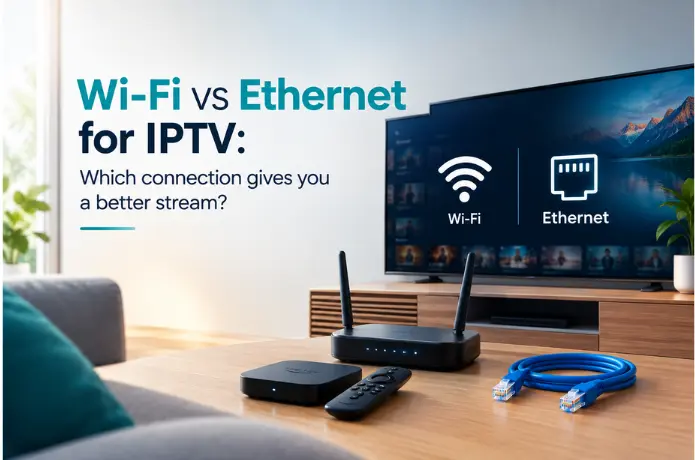

Wi-Fi vs Ethernet for IPTV: Which Connection Actually Gives You a Better Stream?
Something goes wrong with your IPTV stream. The picture freezes, the match cuts out, or the channel takes thirty seconds to load when it used to snap on instantly. Your first instinct is probably to blame the service — maybe the provider's servers are struggling, maybe there's an outage.
Sometimes that's true. But a large share of the time, the real problem is sitting much closer to home. How your device connects to the internet matters enormously for live TV, and most people never think to question it.
This guide is specifically about that choice — Wi-Fi versus Ethernet — and what it actually means for your IPTV experience day to day.
The Thing About Live TV That Changes Everything
There's a meaningful technical difference between watching a show on Netflix and watching a live channel through IPTV, and it matters for this conversation.
Streaming platforms like Netflix pre-load content. While you're watching one scene, the app is quietly downloading the next few minutes in the background. That buffer acts as a cushion — if your Wi-Fi drops for a second or two, you never notice because the app is already ahead of the network problem.
Live TV has no such cushion. A live football match is happening right now, and the stream is being delivered to your screen in real time. Your connection drops for two seconds, your screen freezes for two seconds — or longer. There's nothing pre-loaded to cover it.
That's the core issue. For live IPTV, a stable connection beats a fast-but-inconsistent one every time. And stability is where Wi-Fi and Ethernet diverge most significantly.
Where Wi-Fi Causes Problems for IPTV
Wi-Fi is the obvious choice for most households. No cables, every room covered, easy to set up. For browsing, emails, and most streaming, it holds up well. For live IPTV, it's where things get more complicated.
The issue isn't necessarily speed. Most modern Wi-Fi connections are fast enough for HD and 4K streaming. The issue is consistency — and Wi-Fi has several inherent reasons why it struggles to stay rock-solid:
- Distance matters more than people think. Every metre between your streaming device and the router costs you signal strength. A TV in the spare room can be getting significantly weaker signal than your phone right next to the router.
- Walls absorb signal. Brick and concrete are particularly damaging. Even standard drywall has a noticeable effect across multiple walls.
- Your neighbours share your airspace. In apartments or dense housing areas, you're competing on the same radio frequencies as every other Wi-Fi network nearby. That competition causes interference and the brief micro-dropouts that don't show up on speed tests but freeze live streams.
- Your own devices compete with each other. Every phone, laptop, tablet, and smart home gadget on your network is sharing the same bandwidth. Background tasks — app updates, cloud backups, game downloads — consume bandwidth without announcing themselves.
- Evening congestion is real. ISP networks get busy when everyone comes home. Your router's internal network gets busy too. Both problems stack on top of each other during exactly the hours most people sit down to watch TV.
None of this means Wi-Fi can't work for IPTV. A strong signal close to the router can handle it fine. But the more of these factors are in play, the more likely you are to hit the brief interruptions that live streaming doesn't tolerate.
Why Ethernet Handles Live Streaming Differently
A cable running from your device directly to your router removes almost everything that makes Wi-Fi inconsistent. No wireless signal to degrade, no competing frequencies, no environmental interference. The connection between your device and your router is as direct as it gets.
For live IPTV, that changes things in a few specific ways:
- Brief dropouts stop happening. The momentary signal interruptions that freeze live streams simply don't occur on a wired connection unless something physically breaks. That alone fixes a lot of the IPTV problems people experience.
- Latency is lower. Channel switching feels faster. When there's a brief server-side hiccup, the stream recovers more quickly over a wired connection than over Wi-Fi.
- Speed is predictable. Your wired speed doesn't fluctuate based on what your neighbours are doing with their Wi-Fi or what else is happening in your home's airspace.
- Other devices don't affect it. A phone updating its apps or a games console downloading in the background affects your Wi-Fi stream. It doesn't affect your wired connection in the same way.
Put simply: if you've been dealing with IPTV buffering and switch to Ethernet, there's a very good chance the buffering stops. No subscription change, no router replacement, no internet plan upgrade — just a cable.
Side-by-Side Comparison
| Factor | Wi-Fi | Ethernet | Winner |
|---|---|---|---|
| Connection stability | Variable | Consistent | Ethernet |
| Speed potential | High (Wi-Fi 6) | High (Gigabit) | Tie |
| Latency | Higher | Lower | Ethernet |
| Interference risk | Yes | None | Ethernet |
| Setup convenience | Easy — no cables | Requires cable run | Wi-Fi |
| Device flexibility | Works anywhere | Fixed location | Wi-Fi |
| Live IPTV performance | Good when strong | Excellent | Ethernet |
| 4K streaming | Good on Wi-Fi 6 | Excellent | Ethernet |
| Cost | Already set up | Cable + adapter | Wi-Fi |
What This Means for Your Specific Setup
If you're on a Firestick
Firestick doesn't have a built-in Ethernet port — it connects via Wi-Fi by default. But you can add a wired connection using a USB-to-Ethernet adapter. The official Amazon Ethernet adapter works well, as do third-party alternatives. You plug it into the micro-USB port on the Firestick, connect an Ethernet cable from the adapter to your router, and the Firestick switches to the wired connection automatically.
This is genuinely one of the most effective things you can do for Firestick IPTV performance — and it costs less than most people expect. If you've been dealing with buffering on Firestick and haven't tried this yet, it's the first thing worth doing.
If you're on a Smart TV
Most Smart TVs have a built-in Ethernet port on the back. Check your TV's rear panel — it's usually labeled LAN or the Ethernet symbol. If it's there, connect a cable directly to your router. It's the simplest possible upgrade and makes an immediate difference for live TV streaming.
If you're on an Android TV box
Android TV boxes almost always have a built-in Ethernet port. This is one of the reasons they're popular among IPTV users — wired connection without any adapter needed. If you're using one over Wi-Fi, switch to Ethernet and you'll likely notice the difference immediately.
If you're watching on a phone or tablet
Ethernet isn't an option here — phones and tablets connect via Wi-Fi or mobile data only. For mobile viewing, getting as close as possible to your router and making sure you're on a 5GHz Wi-Fi band rather than 2.4GHz will give you the most stable connection available.
What If Running an Ethernet Cable Isn't Practical?
Not everyone can run a cable from the router to the TV. Different floors, rented property, or simply not wanting cables across the room are all real constraints. Here's how to get the most out of Wi-Fi for IPTV when Ethernet isn't an option.
Switch to the 5GHz band
Most modern routers broadcast on two frequencies — 2.4GHz and 5GHz. The 2.4GHz band has longer range but is more congested and slower. The 5GHz band is faster and less prone to interference, though it doesn't travel as far through walls. For IPTV on a device that's in the same room or nearby, connecting to 5GHz instead of 2.4GHz makes a meaningful difference.
Move the router closer to the streaming device
Physical proximity matters more than most people realise. Moving your router from one side of the house to a more central location can dramatically improve Wi-Fi performance on every device, including your streaming device.
Consider a mesh Wi-Fi system or Wi-Fi extender
If your home is large or has significant Wi-Fi dead zones, a mesh network system fills in coverage gaps by placing multiple nodes throughout the house. A good mesh system gives streaming devices a strong local connection even when the main router is far away.
Reduce competition from other devices
While you're watching live TV, pause large downloads on other devices, especially anything doing automatic updates. Background bandwidth usage from other devices adds up and creates the kind of momentary congestion that causes IPTV freezes.
The Verdict
The stability improvement is real and consistent. A direct wired connection removes the most common cause of IPTV buffering in home setups without requiring any changes to your subscription, your router, or your internet plan.
Switch to 5GHz, move closer to the router, clear bandwidth from other devices, and consider a mesh system if your home is large. In most cases, connection issues are solvable without changing the service itself.
Frequently Asked Questions
Does Ethernet really make IPTV better? +
Can I use Ethernet on a Firestick? +
My Wi-Fi is fast — why is IPTV still buffering? +
How much does a Firestick Ethernet adapter cost? +
Is 5GHz Wi-Fi good enough for 4K IPTV? +
If you're using FireLive TV and experiencing buffering, switching to Ethernet or optimising your Wi-Fi setup is the first step to try before anything else. A stable connection makes a bigger difference than most people expect. And if you haven't tried FireLive TV yet, the free 24-hour trial lets you test the service on your setup — Ethernet or Wi-Fi — before committing to a plan.
Still have questions? Chat with us now for a free trial. We're online 24/7.