
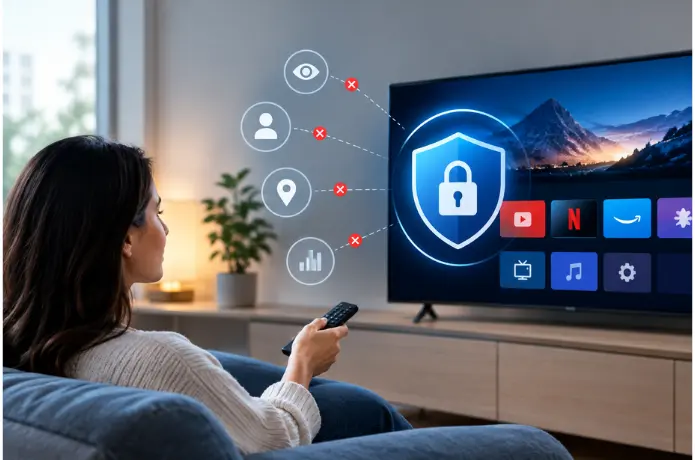

Smart TV Privacy: How to Stop Your TV From Tracking You
Your Smart TV does more than display your favorite movies, sports, and television shows. When connected to the internet, it may also collect information about your viewing habits, app usage, and preferences. If you care about your digital privacy, understanding these settings is an important first step.
Many connected televisions use data to personalize recommendations, display advertisements, and improve their services. While some data collection supports useful features, you may not want to share more information than necessary.
The good news is that you can improve your Smart TV privacy with a few practical changes. This guide explains how tracking works, how to review privacy settings on popular devices, and how to reduce unnecessary data collection without giving up your favorite streaming features.
At FireLiveTV, we share streaming tips, device guides, and troubleshooting advice to help viewers make informed decisions and enjoy a better streaming experience.
What Is Smart TV Tracking?
Smart TV tracking is the collection of information about how you use your television and its connected services. Depending on the manufacturer, device, settings, and apps installed, this information may be used for advertising, recommendations, analytics, or service improvement.
One technology associated with television tracking is Automatic Content Recognition (ACR). When enabled, ACR can identify certain content displayed on a TV, including content from supported sources, to help understand viewing habits.
Depending on the device and services you use, collected information may include:
- Viewing history and content preferences.
- Apps installed and interactions with those apps.
- Device identifiers and advertising IDs.
- Voice search queries when supported voice features are used.
- Technical information, diagnostics, and network details.
This does not mean every Smart TV constantly records conversations. Data collection varies between devices and features. Reviewing your television's privacy settings and the policies of your streaming apps can help you understand what information may be collected.
1. Turn Off Automatic Content Recognition (ACR)
Disabling Automatic Content Recognition, where available, may limit the collection of viewing information used for certain analytics and personalization features. It is a useful place to start when reviewing your Smart TV privacy settings.
Manufacturers use different names for viewing-data controls, so the exact menu depends on your TV model and software version.
For Samsung Smart TVs
- Open Settings on your television.
- Look for privacy, terms, or viewing-information settings.
- Review options related to viewing information, personalized advertising, or data collection.
- Disable optional collection features you do not want, where available.
For LG Smart TVs
- Open your television's Settings menu.
- Look for privacy settings, user agreements, or viewing-information permissions.
- Review agreements related to viewing data and personalized advertising.
- Turn off optional features you do not need, where supported.
Menu names and available controls can vary by model, region, and software version. Disabling ACR does not necessarily stop information collection by individual streaming applications.
For more information, visit Samsung's official privacy and ACR guidance.
2. Limit Personalized Advertisements
Smart TVs and streaming applications may use advertising identifiers and other information to personalize advertisements. You may be able to limit certain forms of personalization through your device's advertising settings.
Disabling personalized ads does not remove every advertisement. It may, however, limit some ways your information is used to select ads.
For Google TV
- Open Settings on your device.
- Look under Privacy or the available advertising settings.
- Review the advertising and personalization controls offered by your device.
- If an advertising ID option is available, review whether you can reset or delete it.
- Check your Google account's privacy settings as well.
The available options depend on your device and software version. Resetting or deleting an advertising ID does not guarantee that all advertising personalization will stop, because services may use other information.
Also check your TV manufacturer's settings for options related to marketing, personalized recommendations, and advertising.
For additional guidance, visit Google's Google TV advertising settings guide.
3. Review Voice Assistant and Microphone Settings
Voice assistants make it convenient to search for movies, open apps, and control your television. Depending on the feature, voice commands may be processed locally or sent to an online service.
If you rarely use voice control, review the related permissions and disable optional features you do not need.
- Check microphone and voice assistant permissions.
- Disable optional voice-data sharing where supported.
- Review the privacy policy of your voice assistant.
- Avoid speaking passwords or sensitive personal information into voice search.
- Check whether your TV or remote has a physical microphone switch.
Do not assume that every Smart TV continuously records conversations. Voice features work differently across manufacturers and devices. Consult your manufacturer's documentation to understand how your model handles voice data.
4. Check App Permissions and Remove Unused Apps
Your TV's main privacy settings may not control all the information collected by individual streaming applications. Each app may have its own privacy policy, permissions, and account settings.
Start by reviewing the apps installed on your television. Remove applications you no longer use, especially those you do not recognize.
Follow these simple practices:
- Download apps from official app stores.
- Review permissions before granting access.
- Check privacy settings within your streaming accounts.
- Sign out of accounts when you no longer use a device.
- Keep apps updated to receive supported fixes.
Uninstalling an app does not automatically delete information it has already collected. If you want to remove stored account data, review the service's privacy controls or account-deletion options.
Before installing a new streaming app, check the developer, available reviews, requested permissions, and privacy policy. These habits can help you make more informed decisions about your personal information.
5. Strengthen Your Home Wi-Fi Security
Your Smart TV connects to your home network, so securing your Wi-Fi is another important step. A protected network helps reduce the risk of unauthorized access to your connected devices.
- Use a strong, unique Wi-Fi password.
- Enable WPA2 or WPA3 security if supported by your router.
- Keep your router firmware updated.
- Review unfamiliar devices connected to your network.
- Consider a separate guest network for smart-home devices if your router supports it.
A separate network can help isolate your Smart TV from computers and phones containing sensitive information. However, it does not prevent the TV from sending data to its manufacturer or streaming services.
Your connection also affects streaming quality. Learn about the advantages of wired and wireless connections in our guide to Wi-Fi vs Ethernet for IPTV.
6. Review Google TV and Android TV Privacy Settings
Google TV and Android TV provide access to streaming apps, personalized recommendations, voice search, and other connected features. The information collected depends on your device, account, settings, and the services you use.
To review the available privacy controls:
- Open Settings on your TV.
- Select Privacy or the relevant account settings menu.
- Review available options related to advertising, location, usage data, and diagnostics.
- Check which apps and services are connected to your account.
- Disable optional permissions or data-sharing features you do not need.
Some features may require information to work correctly. Before changing a setting, consider whether you still want the feature it supports.
Turning off location access does not necessarily prevent online services from estimating your location through your internet connection.
For more information, read Google's guide to Google TV privacy and data.
7. Manage Amazon Fire TV Privacy Settings
If you use an Amazon Fire TV Stick, review its privacy controls separately from your television's settings. Your streaming device may have its own options for usage data, advertising, and app-related information.
To get started:
- Open Settings on your Fire TV.
- Look under Preferences or the available privacy settings.
- Review options related to usage data, app usage collection, and interest-based advertising.
- Turn off optional data collection you do not want, where supported.
- Review the privacy settings of individual apps.
Menu names may vary depending on your Fire TV model and software version. Disabling optional data collection may reduce some personalization or diagnostic features, but it will not necessarily prevent all data transmission.
Keep your Fire TV Stick updated and use a strong password for your Amazon account. You can also review the devices connected to your account and remove those you no longer use.
For more helpful device advice, explore our guide on managing your FireLiveTV subscription.
8. Keep Your Smart TV Software Updated
Software updates can include security improvements, bug fixes, and changes to privacy controls. Keeping your television updated helps you access the latest protections supported by the manufacturer.
To check for updates:
- Open Settings.
- Find Software Update, System Update, or a similar option.
- Select the option to check for updates.
- Follow the manufacturer's instructions to install available updates.
If automatic updates are available, you can enable them or check manually at regular intervals.
Remember that an update does not automatically disable tracking. After a major update, review your privacy settings again because menus and available controls may change.
Avoid installing unofficial software or updates from unfamiliar websites. Use the manufacturer's official update process to reduce the risk of installing malicious or incompatible software.
Common Smart TV Privacy Mistakes to Avoid
Even after changing your settings, a few common mistakes can weaken your privacy. Avoid these habits to maintain better control over your connected devices.
1. Accepting every permission: Review optional permissions and agreements before enabling features.
2. Using weak passwords: Create unique passwords for your streaming and device accounts.
3. Installing unknown apps: Use trusted app stores and check the developer before installation.
4. Ignoring app-level privacy: Review privacy controls within individual streaming applications, not just your TV settings.
5. Assuming one setting blocks everything: Disabling personalized ads or ACR does not guarantee that all data collection stops.
6. Forgetting account security: Review connected devices and sign out of accounts you no longer use.
A quick privacy check every few months can help you stay informed about changes and maintain better control over your viewing data.
Final Thoughts
Smart TVs make it easier to enjoy live television, sports, movies, and online entertainment. However, understanding how your viewing information may be collected and used is an important part of using connected devices responsibly.
By reviewing viewing-data settings, limiting personalized advertisements, checking voice permissions, removing unused apps, securing your Wi-Fi, and keeping your software updated, you can improve your Smart TV privacy without giving up your favorite features.
At FireLiveTV, we believe a better streaming experience starts with useful information and informed choices. Visit our website for streaming tips, device setup guides, and troubleshooting advice to help you get more from your streaming devices.
Looking for more streaming tips?
Explore FireLiveTV for helpful guides and practical advice for your streaming setup.