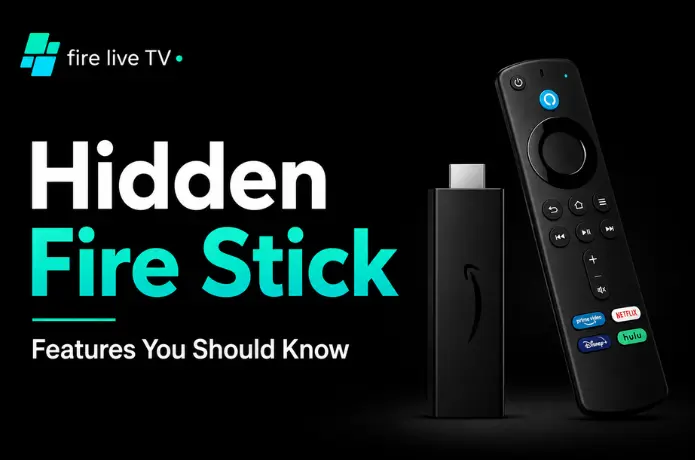

I've had a Fire Stick plugged into my TV for years. And for most of that time, I used it the exact same way — open an app, watch something, repeat.
Then one afternoon I started poking around the settings out of boredom, and within twenty minutes I'd found five things I had no idea were there. Features that genuinely changed how I used the device every single day.
Amazon doesn't exactly advertise these. Most of them are buried two or three menus deep, and a lot of people go years without ever finding them. So here's what I wish I'd known sooner — the best hidden Fire Stick features worth knowing about in 2026.
1. The Quick Access Menu Nobody Knows About
Hold down the Home button on your remote for a few seconds. A menu appears without you leaving whatever you're watching.
From here you can switch user profiles, adjust settings, put the device to sleep, or jump to a specific app — all without going back to the home screen. It sounds like a small thing, but once you start using it, you'll wonder how you ever managed without it. Especially useful in households where multiple people share one Fire Stick and everyone has their own watchlist.
2. Turn Off Autoplay Videos (Your TV Will Thank You)
Out of the box, the Fire Stick plays video previews and trailers automatically while you're just browsing the home screen. It's loud, it's distracting, and according to Amazon's own testing, it slows the device down.
The home screen becomes noticeably quieter and faster. This is honestly one of the first things I do on any new Fire Stick setup.
3. Use Your Phone as a Remote (It's Actually Better)
Download the free Amazon Fire TV app on your iPhone or Android. Once connected to the same Wi-Fi as your Fire Stick, your phone becomes a fully functional remote.
The reason it's better than the physical remote? Typing. Searching for something on a Fire Stick using the on-screen keyboard with a physical remote is painful. With your phone, you just use your regular keyboard and it's done in two seconds. It also works perfectly as a backup for the times the actual remote disappears into the sofa cushions — which, if you've had a Fire Stick for more than a month, has definitely happened.
4. Connect Bluetooth Headphones for Private Listening
This one surprises a lot of people. Your Fire Stick supports Bluetooth audio, which means you can connect wireless headphones or earbuds and watch without disturbing anyone else.
Works with most major Bluetooth headphones and earbuds. Genuinely useful for late-night watching when the rest of the house is asleep.
5. Enable HDMI-CEC to Control Everything With One Remote
If your TV supports HDMI-CEC (most modern TVs do, though they call it different things — Samsung calls it Anynet+, LG calls it SimpLink), you can use your Fire Stick remote to control your TV's volume and power.
Once it's on, you can ditch the TV remote entirely for most things. The Fire Stick remote handles volume, muting, and power. It doesn't work perfectly with every setup, but when it does, it's genuinely convenient.
6. Use Alexa for Way More Than Just Searching
Most people press the microphone button to search for a show. That's it. That's all they use it for.
Alexa on the Fire Stick can do considerably more. You can say "Alexa, rewind two minutes" during playback. You can say "Alexa, find action movies from the 90s." You can say "Alexa, what's the weather tomorrow?" without leaving what you're watching. On newer Fire Stick models, you can even ask Alexa who an actor is in the scene you're currently watching, and it'll tell you — mid-stream, without interrupting playback.
7. The Hidden Developer Tools Menu
This one's for the curious. Hold down the centre D-pad button, then immediately hold down the down button — both together for about four seconds — then press the menu button. A developer tools menu appears that Amazon doesn't publicise.
Inside, you can enable System X-Ray, which overlays real-time data on your screen showing CPU usage, memory, network speed, and more. It's useful for diagnosing performance issues — if your streams are buffering and your CPU is maxed out, that tells you something different than if your network speed is the bottleneck. Most people will never need this, but if you like knowing what's going on under the hood, it's there.
8. Dialogue Boost — Genuinely Useful for Everyday Watching
Buried inside the accessibility settings is a feature called Dialogue Boost. It raises the volume of spoken dialogue above background music and sound effects — without changing the overall volume level.
This isn't just for people with hearing difficulties. If you've ever found yourself turning the volume up during dialogue and back down during action sequences, Dialogue Boost does that automatically. Once you try it, most people leave it on permanently.
9. Fix Your Display Resolution with a Remote Shortcut
If your picture doesn't look quite right — colours seem off, the image is soft, or the resolution doesn't match your TV — hold the Up button and Rewind button at the same time. This opens a manual display resolution picker that lets you override whatever the Fire Stick auto-detected.
Most TVs work fine on auto, but some TVs — especially older 4K sets — don't handshake correctly with the Fire Stick, and forcing the right resolution manually fixes the issue immediately.
10. Manage Your Storage Before It Becomes a Problem
The Fire Stick ships with 8GB of storage. The system uses several gigabytes of that just to run, so you're working with less than you think. As you install apps, this fills up fast.
Most people only notice when their device starts running slowly. Deal with it before that point.
11. Screen Mirroring — Cast Your Phone to Your TV
Your Fire Stick can display whatever is on your phone or laptop screen, wirelessly. It's called screen mirroring, and it's built into the device.
From your Fire Stick home screen, go to Settings → Display → Enable Display Mirroring. Then on your Android phone, use the cast or screen mirror option in your quick settings panel. Your phone screen appears on the TV within a few seconds.
Useful for sharing photos, playing mobile games on a bigger screen, or showing someone a video without passing your phone around.
12. Use It With IPTV Apps for Live TV
Here's one that's especially relevant if you want to get more out of your Fire Stick for live television.
The Amazon App Store includes IPTV player apps like IPTV Smarters Pro — download it directly without needing to sideload anything. Once you have an IPTV subscription, you enter your credentials and get access to thousands of live channels, sports, international content, and movies, all through your Fire Stick.
👉 Try FireLive TV Free for 24 Hours
13. Put It to Sleep Properly (And Turn It Off When Needed)
A lot of people don't realise that the power button on the Fire Stick remote doesn't turn the stick off — it only powers down the TV. The Fire Stick itself stays on.
Hold the Home button → select Sleep.
Hold the Select button and Play/Pause button simultaneously for about five seconds.
Hold the Select and Play/Pause buttons together for five seconds — worth doing whenever things get slow, rather than just unplugging it.
The Bottom Line
The Fire Stick is a genuinely capable device. Most people use about 40% of what it can actually do. The features above don't require any special technical knowledge — they're all sitting in the settings menu, waiting to be found.
Start with the Quick Access menu and turn off autoplay. Those two alone will change how the device feels to use day to day. Then work your way through the rest at your own pace.
And if you're using your Fire Stick for IPTV, don't forget that FireLive TV offers a free 24-hour trial — no credit card required — so you can see exactly how 6,000+ live channels look on your setup before spending anything.