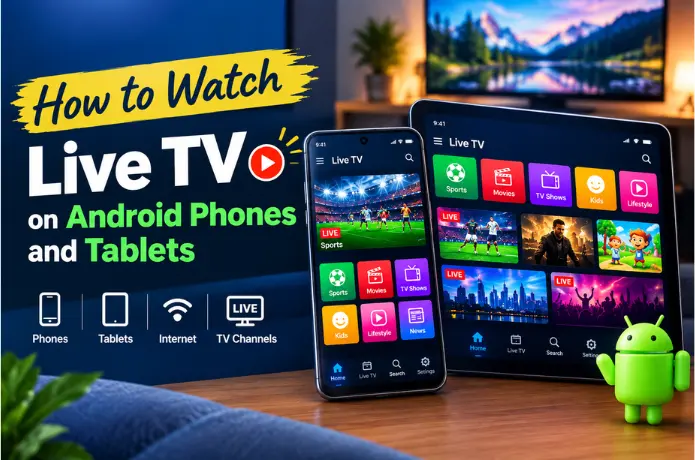

How to Watch Live TV on Android Phones and Tablets
Watching live TV no longer requires sitting in front of a television. With an Android phone or tablet, you can enjoy live news, sports, movies, and entertainment wherever you have a reliable internet connection. The key is choosing a compatible streaming service and setting it up correctly.
Whether you are using a Samsung Galaxy phone, a Google Pixel, or an Android tablet, watching live television online can be straightforward. Depending on the service, you may be able to access live channels through a dedicated application or a mobile web browser.
In this guide, we will explain how to watch live TV on Android phones and tablets, what you need before streaming, how to choose a suitable service, and how to solve common playback problems. We will also discuss internet speed, mobile data usage, device compatibility, and safe streaming practices.
1. What Do You Need to Watch Live TV on Android?
To watch live TV on an Android device, you generally need a compatible streaming service, an internet connection, and an application or browser supported by that service.
Before getting started, make sure you have the following:
- An Android phone or tablet: Check that your device meets the streaming service's requirements.
- A reliable internet connection: Wi-Fi is often convenient for longer viewing sessions.
- A compatible streaming app: Use the provider's official app or supported web player.
- An account or subscription: Some services require registration or payment.
- Enough battery and storage: Keep your device charged and install app updates when needed.
You should also confirm that the service is available in your country and supports the channels you want to watch.
2. How to Watch Live TV on an Android Phone
Watching live TV on an Android phone usually takes only a few steps. The exact process depends on the streaming provider and the application it supports.
Step 1: Check your internet connection
Connect your phone to a stable Wi-Fi network or check that your mobile data connection is strong enough for video streaming.
Step 2: Choose a streaming service
Compare available channels, pricing, supported devices, and subscription conditions. If you are considering FireLive TV, review its official website and setup guide before proceeding.
Step 3: Install the compatible application
If your chosen provider has an official Android app, look for it through a trusted source such as the Google Play Store. Verify the developer and follow the provider's documented installation instructions.
If the provider supports browser-based streaming, you may be able to watch through your mobile browser instead.
Step 4: Sign in and select a channel
Open the application or supported web player. Complete the account setup if required, browse the available channels, and select the program you want to watch.
Step 5: Adjust your viewing settings
Rotate your phone horizontally for a wider picture. If the video keeps buffering, lower the streaming quality or switch to a more stable network.
Once setup is complete, you can watch supported live programming whenever you have an internet connection and access to the service.
3. How to Watch Live TV on an Android Tablet
Android tablets provide a larger viewing area than most phones, making them useful for watching live sports, news, movies, and entertainment at home or while traveling.
The setup process is similar to using a phone:
- Connect your tablet to Wi-Fi or mobile data.
- Choose a streaming provider that supports your device.
- Install the official app or open the supported web player.
- Sign in if required by the service.
- Browse the available channels and start streaming.
For a more comfortable viewing experience, place your tablet on a stand and use landscape mode. If your device supports picture-in-picture and your chosen app allows it, you may also be able to keep a video playing while using another application.
Remember that not every Android app supports every tablet model. Check compatibility before subscribing.
4. Can You Watch Live TV Without a Cable Connection?
Yes. Many streaming services deliver live television over the internet, so you do not need a traditional cable connection or a cable box.
Internet-based television can be convenient if you prefer watching programs on a mobile device. Depending on the provider, you may find sports, news, movies, entertainment, and international programming.
However, streaming without cable does not necessarily mean watching for free. Some services are advertisement-supported, while others require a subscription.
Before choosing a provider, compare:
- Channel availability in your location.
- Monthly and annual subscription prices.
- Supported phones, tablets, and televisions.
- Simultaneous-streaming limits.
- Streaming quality and customer support.
- Trial conditions and cancellation policies.
For FireLive TV, review the current subscription plans and verify which features and devices are included before purchasing a plan.
5. How to Choose a Live TV Streaming Service for Android
The best live TV service depends on what you want to watch, where you live, and how much you want to spend. A service with thousands of advertised channels is not necessarily the best choice if it does not include your preferred programs.
Consider these factors when comparing providers.
Channel selection
Check whether the service offers the sports, movies, news, entertainment, and regional channels you regularly watch.
Android compatibility
Confirm that your specific phone or tablet is supported and that the provider offers clear installation instructions.
Pricing and subscription terms
Compare the full subscription cost rather than focusing only on an advertised monthly price. Check renewal terms, refund conditions, and whether a trial requires payment details.
Streaming quality
Look for information about supported resolutions, connection requirements, and playback features.
Customer support
A provider should explain how to set up the service and where to get assistance if playback problems occur.
FireLive TV is an option to investigate if you are looking for internet-based television. Review its official service details and confirm channel availability, device support, and subscription terms before deciding whether it suits your needs.
6. What Internet Speed Do You Need for Live TV?
A stable internet connection is essential for watching live TV without frequent interruptions. The speed you need depends on video resolution, the streaming application, and whether other devices are using the same connection.
As a general guideline, a connection of around 5 Mbps may be sufficient for some HD streams, while Full HD and higher-resolution streaming can require more bandwidth. Actual requirements vary by provider.
Try these tips to improve playback:
- Connect to a reliable Wi-Fi network.
- Move closer to your router if the signal is weak.
- Pause large downloads while streaming.
- Lower the video resolution if playback becomes unstable.
- Restart your router or device if the connection stops working.
If buffering continues, the problem may be related to network congestion, the streaming service, or your device rather than internet speed alone.
7. How Much Mobile Data Does Live TV Use?
Live TV streaming can use a significant amount of mobile data, particularly when watching high-definition video for several hours.
The following figures are rough estimates:
| Streaming quality | Approximate data per hour |
|---|---|
| Standard definition (SD) | 0.5–1 GB |
| High definition (HD) | 1–3 GB |
| Full HD or higher | 2–5 GB or more |
Actual data usage varies according to the app, video compression, and selected quality.
If your mobile data allowance is limited, connect to Wi-Fi whenever possible. You can also reduce video quality and monitor your data usage through your Android device's settings.
This is especially useful when traveling, watching live sports, or streaming for extended periods away from home.
8. How to Fix Common Live TV Problems on Android
If live TV will not play correctly, a few basic troubleshooting steps may help.
Problem: The video keeps buffering.
Check your internet connection, close unnecessary downloads, and lower the video quality.
Problem: The app will not open.
Restart your phone or tablet and check whether an official app update is available.
Problem: The channel will not load.
Check whether the channel is available in your location and included in your subscription. The provider may also be experiencing a temporary service issue.
Problem: The screen is black.
Try reopening the player, checking the connection, and restarting the app. If the problem continues, contact the provider.
Problem: The app is incompatible with your device.
Check the provider's Android requirements and use only its documented installation method.
For additional troubleshooting, see our guide to fixing IPTV buffering issues.
9. Is It Safe to Watch Live TV on Android?
Watching live TV on Android can be safe when you choose reputable services and follow basic security practices. The main risks often come from untrusted applications, misleading offers, suspicious websites, and requests for unnecessary permissions.
Protect your device by following these recommendations:
- Download applications from trusted sources.
- Check the developer's identity before installation.
- Avoid modified APK files from unknown websites.
- Never enter payment details on an unverified website.
- Keep Android and your applications updated.
- Review the provider's privacy policy and subscription terms.
You can also learn about Google's app security protections in the Google Play Protect help guide.
Before subscribing to an internet TV service, check that it is authorized to distribute the channels it offers in your region.
10. Can You Watch International TV Channels on Android?
Yes. Some streaming services offer international channels covering news, sports, movies, and entertainment in different languages. However, channel selection and availability depend on the provider's licensing agreements and your location.
For viewers who enjoy Malayalam, Hindi, English, or other language programming, checking the channel list before subscribing is particularly important.
If you live in India or watch Indian programming from abroad, look for the specific regional and language channels you want. Do not assume that every provider offers the same selection.
Also check for regional restrictions, supported devices, and any additional subscription requirements.
FireLive TV users should review the provider's current channel lineup and service terms to determine whether the desired programming is available.
11. Can You Use One Streaming Service on Multiple Devices?
Some streaming providers allow customers to watch on phones, tablets, smart TVs, and other compatible devices. However, supported devices and the number of simultaneous streams depend on the provider and subscription plan.
Before purchasing a subscription, check whether your plan supports your Android phone and tablet and whether you can stream on more than one screen at the same time.
If you want to switch between devices, look for clear setup instructions for each supported platform. You can begin by visiting the FireLive TV website to review its current service information.
Always confirm the applicable device limits rather than assuming that one subscription permits unlimited simultaneous viewing.
Final Thoughts
Watching live TV on Android phones and tablets is a convenient way to enjoy your favorite programs without relying on a traditional cable setup. With a compatible streaming service, a reliable internet connection, and the right settings, you can watch supported channels at home or on the go.
Before choosing a provider, compare channel availability, pricing, Android compatibility, streaming quality, and customer support. Use trusted applications, protect your personal information, and monitor mobile data usage when you are away from Wi-Fi.
Visit the official website to review its current channel offerings, setup instructions, and subscription options. Choosing a service that fits your viewing habits and budget is more important than simply choosing one with the largest advertised channel count.