
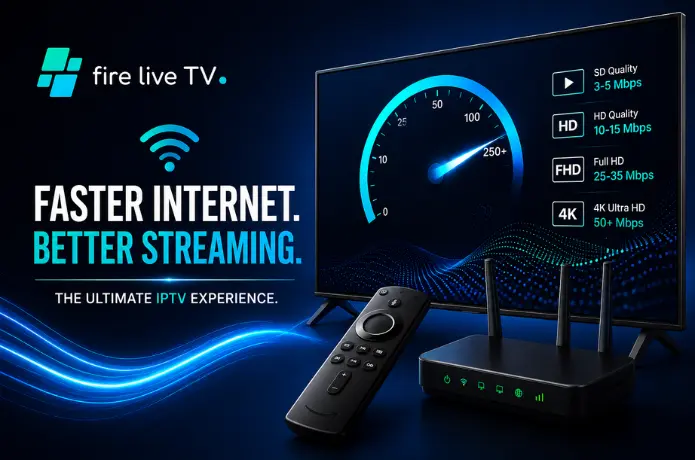

What Internet Speed Do You Need for IPTV?
"How fast does my internet need to be for IPTV?" is one of the most common questions we get before someone signs up — and it's a fair one. A connection that handles email and social media just fine can still choke on a live HD stream. The good news is you almost certainly don't need to overhaul your internet plan. You just need the right amount of bandwidth for the quality you're watching, plus a bit of headroom for everything else going on in your home.
Let's break down exactly what that looks like.
The Quick Answer First
If you just want the numbers, here they are. For a single HD stream, you're looking at 15–25 Mbps as a comfortable minimum. Stepping up to 4K, you want 50 Mbps or more. And if your household has multiple people streaming at the same time — which most do — aim for 100 Mbps and you'll be in good shape.
Here's the part most guides skip: these numbers only hold up if your connection is stable, not just fast on paper. A wobbly 100 Mbps line can buffer worse than a steady 25 Mbps one. We'll get into why below.
Speed Requirements by Stream Quality
Here's a clear breakdown so you know exactly what you're working with depending on the quality you want to watch. These figures are per active stream — if two people are watching separately, add the numbers together rather than looking at just one.
| Stream Quality | Minimum Speed | Recommended Speed | Best For |
|---|---|---|---|
| Standard Definition (SD) | 5 Mbps | 10 Mbps | Smaller screens, basic viewing |
| High Definition (HD 720p) | 10 Mbps | 15 Mbps | Most everyday viewing |
| Full HD (1080p) | 15 Mbps | 25 Mbps | Living room TVs, laptops |
| 4K UHD | 25 Mbps | 50 Mbps+ | Large 4K Smart TVs |
| Multiple HD streams | 50 Mbps | 100 Mbps+ | Families, multi-room setups |
Want a fast way to sanity-check your own setup? Add up your active streams: two Full HD streams at 25 Mbps each is 50 Mbps, then leave extra room on top for phones, laptops, and anything else pulling from the same connection. That headroom is what keeps things smooth when the whole household is online at once.
Your Bill Says 100 Mbps. Your Stream Disagrees. Here's Why.
This trips people up all the time. The speed your provider sells you is the theoretical maximum under perfect conditions — not what your TV actually receives.
Between your router and your streaming device, all sorts of things get in the way. Distance, walls, other devices on the network, the age of your router, even the time of day. During the evening — roughly 7pm to 11pm — your neighbourhood's internet traffic peaks, and your effective speed can drop significantly. This is exactly when most households are watching TV, which is why buffering tends to happen at the worst possible moments.
Before you blame your IPTV service, go to speedtest.net on the actual device you stream on — not your phone, not your laptop, the device that's buffering — and run a test during the evening. That number is your real speed. If it's well below what you pay for, that's where to start fixing things.
Does Wi-Fi Speed Matter, Even If My Plan Is Fast?
Yes — and it's one of the most overlooked pieces of the puzzle. Your internet plan is only the first leg of the journey. From there, it has to travel: internet plan → router → Wi-Fi → your Smart TV or streaming box. A weak link anywhere in that chain drags down what your device actually receives, no matter how fast your plan is on paper.
If you want to know for certain whether Wi-Fi is the culprit, plug your streaming device directly into the router with an Ethernet cable and test again. If performance suddenly improves, you've found your answer.
The Ethernet Cable Nobody Wants to Use — But Should
I know. Running a cable across the room isn't what anyone wants to do. But if you're serious about fixing buffering, this is the single most effective thing you can do.
Wi-Fi is great for browsing and casual use. For live streaming, it's a weak link. Walls reduce signal, interference from neighbouring networks causes dropouts, and even a brief two-second interruption in your Wi-Fi creates a buffer that takes much longer than two seconds to clear.
Plug your Smart TV or streaming device directly into your router with an Ethernet cable and the problem often goes away entirely — even on connections that looked too slow over Wi-Fi. Most Smart TVs have an Ethernet port built in. Fire Sticks can use a USB-to-Ethernet adapter. Android TV boxes almost always have one too.
It's boring advice, but it works better than anything else on this list.
The Hidden Speed Thief — Everything Else on Your Network
Your home Wi-Fi is shared between every connected device under your roof. And a lot of those devices are using bandwidth even when nobody is actively using them.
A smartphone downloading an iOS update in the background, a games console pre-loading a patch, a laptop syncing to the cloud — all of that competes with your IPTV stream for the same bandwidth. It's worth remembering that the number of devices matters less than what they're actually doing: ten idle phones use almost nothing, but one console mid-download can eat a huge chunk of your connection on its own.
If you're streaming and things look fine in the morning but buffer in the evening, this is often why. Everyone comes home, devices wake up, and suddenly the network is under real load.
The practical fix is to run a wired connection to your TV and let everything else fight it out over Wi-Fi. Your stream stays stable regardless of what's happening elsewhere on the network.
What Does a Family Household Actually Need?
If you've got two or three people in your home watching on different screens at the same time — which is pretty normal — the numbers change meaningfully.
- 2 simultaneous HD streams: 50 Mbps recommended
- 3 simultaneous HD streams: 75 Mbps recommended
- 4 simultaneous HD streams: 100 Mbps or more
- Mix of HD and 4K at the same time: 100–150 Mbps
The good news is that most broadband plans in the US now come with 100 Mbps or above as standard. If you're still on something slower and you have a busy household, upgrading your internet plan will do more for your viewing experience than any app setting or device tweak.
How to Fix IPTV Buffering — Step by Step
Step 1 — Run a speed test on the right device
Use speedtest.net on the device that's actually buffering, during the evening when you normally watch. If the speed is below the minimum for the quality you're streaming, start there — either lower the stream quality in your app or upgrade your internet plan.
Step 2 — Plug in an Ethernet cable
Connect your streaming device directly to your router. This is almost always the fastest fix. If your device doesn't have an Ethernet port, a USB-to-Ethernet adapter costs very little and makes a real difference.
Step 3 — Restart your router
Routers get cluttered with connection state over time. A simple restart — power off, wait 30 seconds, power back on — often brings speeds back up and clears issues that have been quietly building up for days.
Step 4 — Move your router or get a Wi-Fi extender
If your router is in one corner of the house and your TV is in another, signal strength will suffer. Moving the router closer helps, or a mesh Wi-Fi system can eliminate dead zones across larger homes.
Step 5 — Pause other downloads while watching
If someone else on the network is downloading a large file or a game update, it will take bandwidth away from your stream. Pause those tasks while watching something live — especially during sports events where buffering at the wrong moment really stings.
Step 6 — Reach out to your IPTV provider
If you've been through all of the above and things are still not right, contact your IPTV service directly. A good provider can check whether the issue is on their end and help you troubleshoot.
FireLive TV has a support team available 24/7 — by phone at +1 (918) 725-5392, by email at support@firelivetv.com, and on WhatsApp. You're not left guessing on your own.
Does IPTV Use a Lot of Data?
Roughly similar to Netflix or any other video streaming service — but with one important difference. IPTV is almost always live, which means it can't buffer ahead the way on-demand content does. That's why connection stability matters more than peak speed for IPTV specifically.
For reference, here's how much data IPTV uses per hour at different quality levels:
- SD: Around 1 GB per hour
- HD: Around 3 GB per hour
- Full HD: Around 5 GB per hour
- 4K: Around 15–20 GB per hour
Most US broadband plans are unlimited these days, so data usage is not typically a concern. But if you're on a capped plan, watching Full HD for a few hours each evening will use your allowance faster than you might expect.
Wrapping It Up
The honest summary is this: for a single viewer watching Full HD, 25 Mbps on a stable connection is perfectly fine. For a household with three or four people streaming at once, 100 Mbps gives you the headroom you need.
And before you blame an IPTV service for buffering, try the Ethernet cable and a router restart first. It's unglamorous advice, but in the vast majority of cases, that's all it takes.
If you want to see how FireLive TV performs on your own connection and devices before committing to anything, the free 24-hour trial is the easiest way to find out. No credit card needed — just test it properly and decide from there.
Still have questions? Chat with us now for a free trial. We're online 24/7.