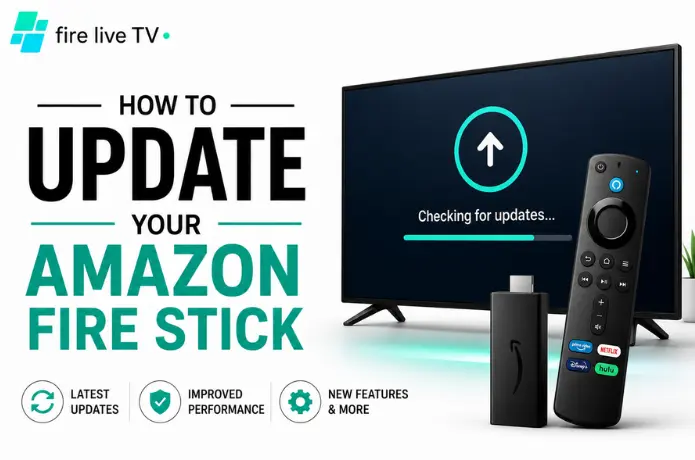

For a long time I figured my Fire Stick just worked. It didn't need babysitting. As long as Netflix opened and YouTube played back without a hitch, I never gave it a second thought.
Then one night everything just felt off. Apps took forever to open, the home screen was laggy, and two of my streaming apps crashed on me back to back. My first instinct was to blame the Wi-Fi. But out of curiosity I checked for a software update, installed it, and the difference honestly surprised me — menus snapped back to normal speed, apps launched without that annoying pause, and the whole thing just felt lighter.
That was basically my wake-up call. Updating the thing isn't optional maintenance you can put off forever — it's one of the cheapest ways to keep it running the way it's supposed to.
So if you've never bothered updating yours, or you're not totally sure how, here's how I do it.
Why Bother Updating at All?
Most people only think about updates when something breaks. But Amazon is pushing changes to these devices pretty regularly, and a lot of it happens quietly in the background — you'd never notice unless you went looking.
What you're usually getting out of an update:
- A noticeably smoother, faster interface.
- Fewer random freezes or app crashes.
- Security patches (worth more than people realize).
- Support for newer apps that wouldn't run on older software..
- occasional new Fire TV features.
- Better overall stability, especially after long uptimes
If you're using the thing daily — movies, sports, live TV, IPTV, whatever — these little updates add up over time.
Before You Hit Update
Nothing fancy here, just the usual common sense:
- Get on a Wi-Fi connection you actually trust, not the weak signal from two rooms over.
- Plug into a real power source rather than a flaky USB port on your TV.
- Keep the remote within reach.
- Don't yank the power mid-update — that's how you end up with a bricked stick.
Takes thirty seconds to check these and it'll save you a headache.
The Actual Steps
This whole process rarely takes more than fifteen minutes, and most of that is just waiting.
- Open Settings — from the home screen, head over to the Settings gear.
- Go to My Fire TV — scroll down until you spot it. This is where all your device info and updates live.
- Tap About — this pulls up the details on your specific device.
- Check for Updates — the stick will ping Amazon's servers to see if there's anything newer than what you're running.
- Install if there's one available — hit Install Update, let it download, and it'll restart on its own once it's done.
Most updates wrap up somewhere between five and fifteen minutes depending on your internet speed.
Confirming It Actually Worked
Once it restarts, go back through: Settings → My Fire TV → About
You should see your Fire OS version, software version, device name, how much storage you've got left, and your network status. If there's no new update showing, congrats — you're current.
What's Actually Changed Lately
Amazon tweaks the Fire TV experience pretty often, and while no two updates are identical, the recent focus has clearly been on making things less cluttered and easier to navigate. A few things I've noticed:
Navigation feels less buried. Menus are more logically grouped now, so hunting for a specific show or channel takes fewer clicks.
The home screen prioritizes what you actually use. Less scrolling to find your go-to apps.
Speed is genuinely better. Not a huge leap, but app launches and menu transitions feel snappier after most updates.
Settings are easier to find. Audio, display, connected device controls — they're not buried three menus deep anymore.
If It Won't Update
Don't panic, this happens and it's usually something simple.
Restart it first. Settings → My Fire TV → Restart, then check again. Fixes more than you'd expect.
Check your Wi-Fi. A weak signal can quietly kill an update mid-download. Move closer to the router if you can.
Clear out some storage. A nearly-full device can choke on an update. Delete a few apps you don't use.
Just wait it out. Amazon rolls these out in batches, not all at once. If your buddy's stick already updated and yours hasn't, give it a few days.
Will I Lose My Apps?
No. Your apps, IPTV logins, saved settings, personal preferences — none of that gets wiped by an update. Everything comes back exactly as you left it once the restart finishes.
Which Models Still Get Updates?
Amazon's still supporting most of the popular lineup:
- Fire TV Stick HD
- Fire TV Stick Lite
- Fire TV Stick (3rd Gen)
- Fire TV Stick 4K
- Fire TV Stick 4K Max
- Fire TV Cube
Exactly what you get out of an update can vary a bit by model, but they're all still in the rotation.
Habits That Keep Mine Running Well
Updates help, but they're not magic on their own. A few small habits I've picked up:
- Restart every few weeks, even if nothing's wrong.
- Uninstall apps I've stopped using.
- Keep the apps I do use updated too, not just the OS.
- Leave some breathing room on storage.
- Stay on a stable connection.
- Actually install updates when they show up instead of dismissing them.
None of this is glamorous, but together it makes a real difference in how the device feels day to day.
Quick Questions
Bottom Line
You don't need to obsess over this weekly, but checking every so often costs you almost nothing and genuinely pays off — faster performance, fewer annoying bugs, and apps that keep working the way they should.
If it's been a while since you last checked, it's probably worth five minutes right now.
Need Help?
If you're setting up your Fire Stick, looking for a reliable IPTV service, or just have questions about streaming, we've got you covered.
👉 Start Live Chat
You'll also find more Fire Stick tutorials, IPTV guides, and streaming tips over at FireLiveTV.com.