
How to Watch FireLive TV on Multiple Devices with One Subscription
My cousin called me last month, a little frustrated because her daughter and her husband kept trying to watch their own shows at the same time, and the app kept logging one of them out. She'd just assumed that's how streaming worked, one screen at a time, take turns like it's still 2009. I had to explain that no, that's not how it has to work anymore. It just depends on what you're subscribed to.
"Wait, so I don't need three separate accounts for three people?"
No, she didn't. A lot of people don't realize this until they hit the wall themselves. The kid wants cartoons on the tablet, dad wants the game on the big screen, mom's watching something on her phone in the kitchen, and suddenly the app says no. With FireLive TV, that's not something you have to plan around. One subscription covers every device in the house, all running at once. Here's how it actually works and how to get it set up properly.
Why It Matters That One Plan Covers Every Screen
Nobody watches TV the way they did ten years ago. People expect to start a show on the living room TV, pause it, and pick it back up on a tablet later. Or they want the match playing in the background on one screen while someone else streams a movie on another. A subscription that's actually built for that, instead of fighting you on it, saves a lot of low-grade household friction.
It also just makes more financial sense. Paying for a separate plan for every TV in the house adds up fast, and most people don't need that. They need one good subscription that doesn't care how many screens it's running on. FireLive TV's library of 6,000+ live channels comes with you, no matter which device you're logged into.
What Devices Actually Work With FireLive TV
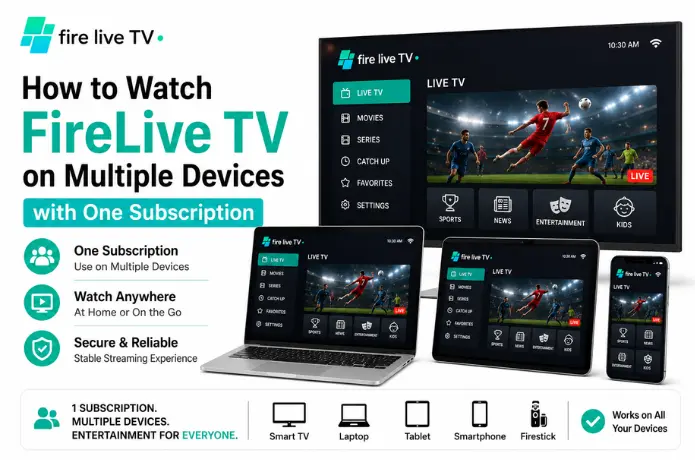
This is usually the first thing people ask about, and the short answer is: pretty much whatever you already own. FireLive TV runs on smart TVs from brands like Samsung, LG, and Sony LIV (there's a dedicated Smart TV setup guide if you want specifics for your brand), streaming sticks and boxes for older TVs that don't run apps natively, phones and tablets on iOS or Android, and laptops or desktops on Windows or Mac.
You log in with the same credentials on each one. No separate account creation, no "device 1, device 2" nonsense. The system just recognizes your subscription wherever you sign in, and there are no per-device fees added on top. You can check current pricing on the Buy page or test things out first with a free trial before committing to anything.
Setting It Up Across Your Household
📺 Getting Every Device Running
This part is quicker than people expect, maybe fifteen minutes total if you're setting up two or three devices back to back.
Start by picking a plan. FireLive TV runs on three tiers: Bronze for one month, Silver for three, Gold for six. All of them include the full 6,000+ channel library, catch-up, EPG, and parental controls. The only real difference is how long the plan runs.
Grab the plan from the Buy page, or if you'd rather see it in action first, book a quick demo. On each device, install the app or player by following the Set Up Guide, since the steps differ slightly between a Smart TV and a phone. Log in with the same credentials everywhere rather than trying to create a new account per device. If kids are using any of the devices, turn on parental controls right away rather than after the fact. And run a quick test on each screen before you actually need it, since it's better to catch an issue now than during the big game.
What Actually Makes Multi-Device Streaming Smooth
Having access to five devices doesn't help much if everything buffers the moment two people stream at once. A few things worth paying attention to:
- Don't ignore app updates. It's tempting to set it up once and forget it, but an outdated player is the most common reason a previously fine stream suddenly starts acting up.
- Your internet connection matters more than people think. Two or three HD streams running at once need real bandwidth, and if things start buffering during peak hours, an Ethernet cable to your main device usually helps more than people expect.
- Use catch-up instead of forcing everyone to watch live. If three people all want to watch something at 8pm, that's when you feel the strain. Spreading viewing out with catch-up eases that quite a bit.
- Customize per device rather than per person. You won't get individual logins, but you can set favorite channels and restrictions differently on the kids' tablet versus the living room TV.
Why People End Up Sticking With FireLive TV
6,000+ live channels spanning sports, news, movies, and international programming, not just a number on a landing page.
Sharp picture and clean audio on Smart TVs, not just on a phone screen, where flaws are easier to hide.
Bronze, Silver, and Gold tiers on the Buy page mean you're not locked into paying for six months if you just want to try it for one.
This is usually the thing that makes or breaks an IPTV service for people, and it's the area FireLive TV gets the most credit for.
Questions People Usually Ask
Do I pay more for each extra device?
One of my devices keeps buffering. What's going on?
Can I lock down what my kids watch on their device?
Is there an actual limit on how many devices I can run?
Wrapping Up
My cousin's problem wasn't really about her TV or her family. It was just that her old subscription was never built to handle more than one person at a time, and nobody had told her that wasn't the only option. Once she switched over, the whole "who gets to watch what" argument basically disappeared.
If your household runs into that same wall, it's worth setting things up properly once rather than living with it. Get the app installed correctly on each device, lean on catch-up when everyone wants something different at the same time, and keep an eye on your internet connection if more than one stream is running.